Workspace management
Smart DockNavi
Agentic AI Dock Management System
Smart Dock, DockNavi, Hermes Agent and Live OSD connect device visibility, policy-based tasks and on-site confirmation, so IT can manage docks across sites before problems reach users.
What is Smart Dock?
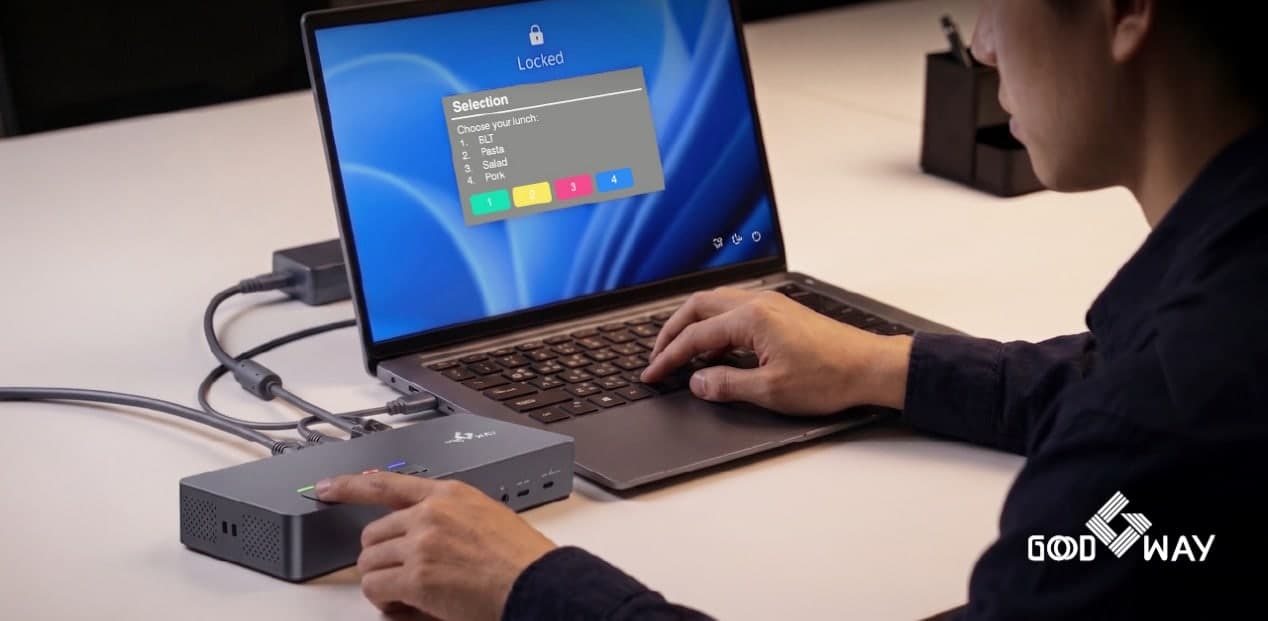
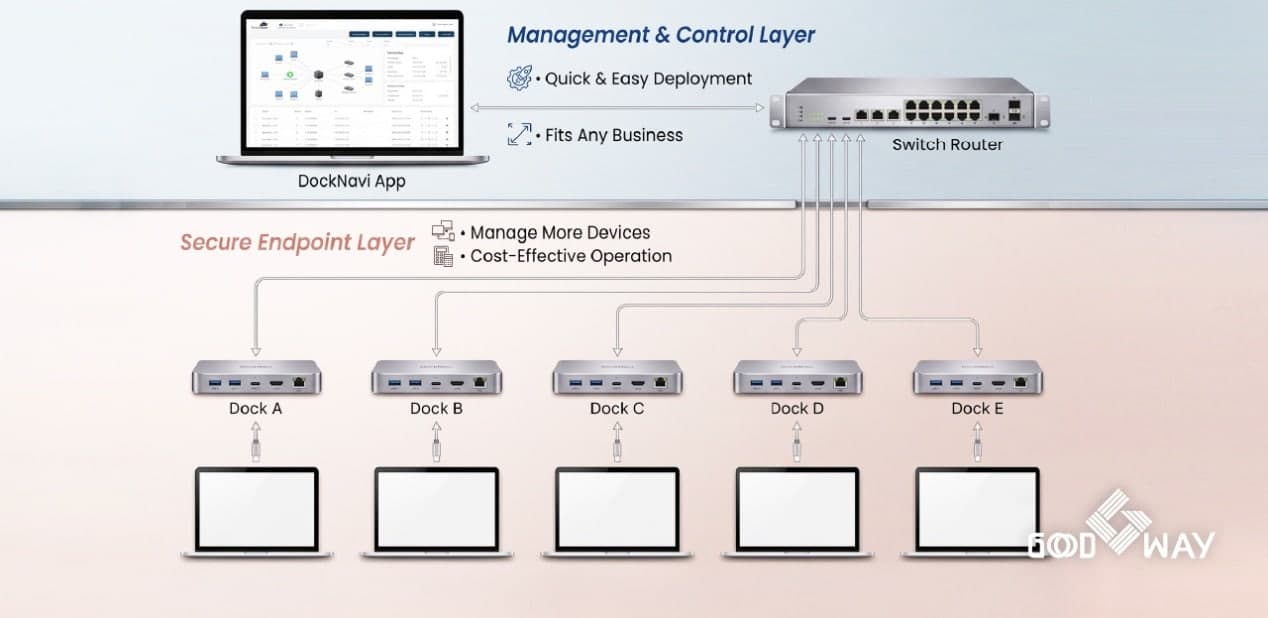
Smart Dock is Good Way's managed docking system: docking stations that report their status over their own network port, managed from the DockNavi portal. IT can see temperature, load, network, firmware and connection status, update firmware in batches over the LAN, control ports and schedule power, while people stay in control of sensitive actions through on-screen confirmation.
From sense to report
Five steps turn each dock into a managed node: what it senses, what policy decides, what runs, who confirms and what is recorded.
Sense
Docks report temperature, load, network, firmware version and connection status.
Decide
Hermes Agent checks events against the rules IT has authorized.
Execute
Power schedules, alerts, port policies and firmware updates run in batches.
Confirm
Sensitive actions wait for the person at the desk to confirm on screen.
Report
Results, sources and responses are logged for IT to review.
What changes for IT
Spot what matters
Monitor temperature, load, network, firmware and connection status across managed docks, with real-time alerts.
Manage at scale
Group devices, deploy firmware in batches over the LAN, set port policies and schedule power.
Fit enterprise IT
Choose app, public cloud or private cloud deployment, with role-based access and an operation log.
Save energy on schedule
Power docks off outside working hours with scheduled power-off, in line with ESG energy goals.
Know every device
The portal detects docks that are not yet provisioned, so only docks IT has added join the fleet.
Keep people working
Video, USB and charging keep working while the dock is managed through its own control path.
Live OSD: 4 keys, on-site confirmation
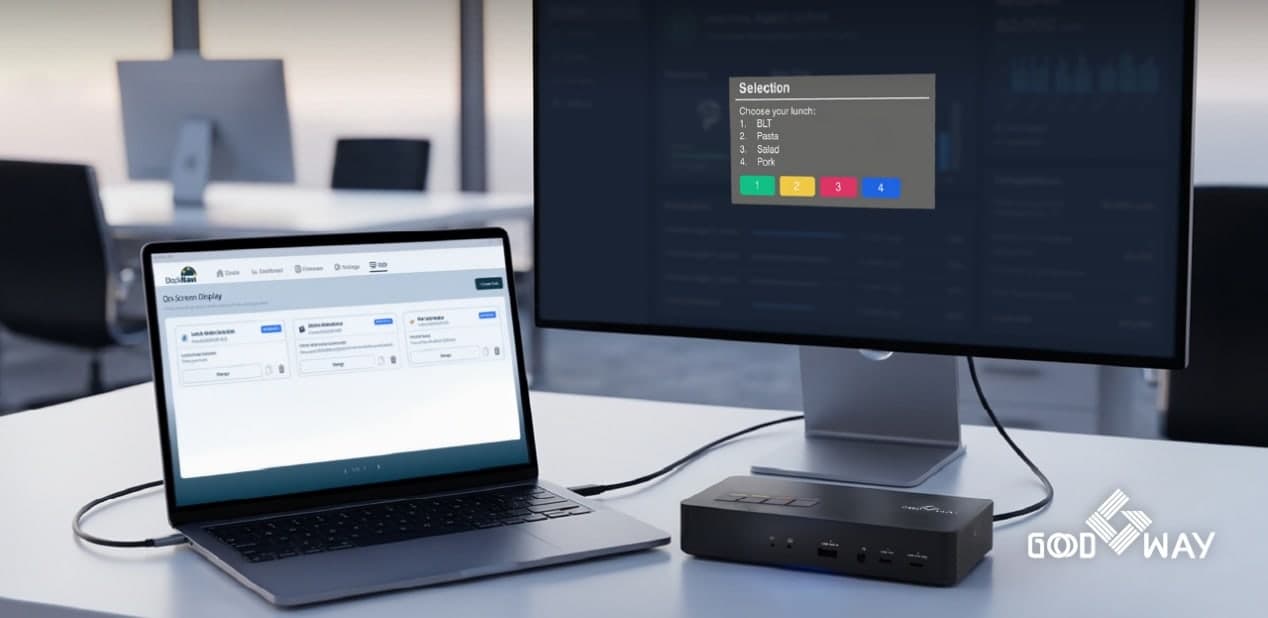
On Smart Dock models with Live OSD, prompts appear on the monitor already on the desk and the user answers with the four keys on the dock, with no app to open. Unknown USB devices and permission or setting changes wait for this confirmation; a prompt that times out keeps the safe state.
Notification
Messages from IT, such as server status or maintenance notices.
Vote
Quick polls with up to four choices, answered with one key.
Confirmation
Sensitive actions go ahead only when the person at the desk confirms.
Software
DockNavi: one portal for every dock
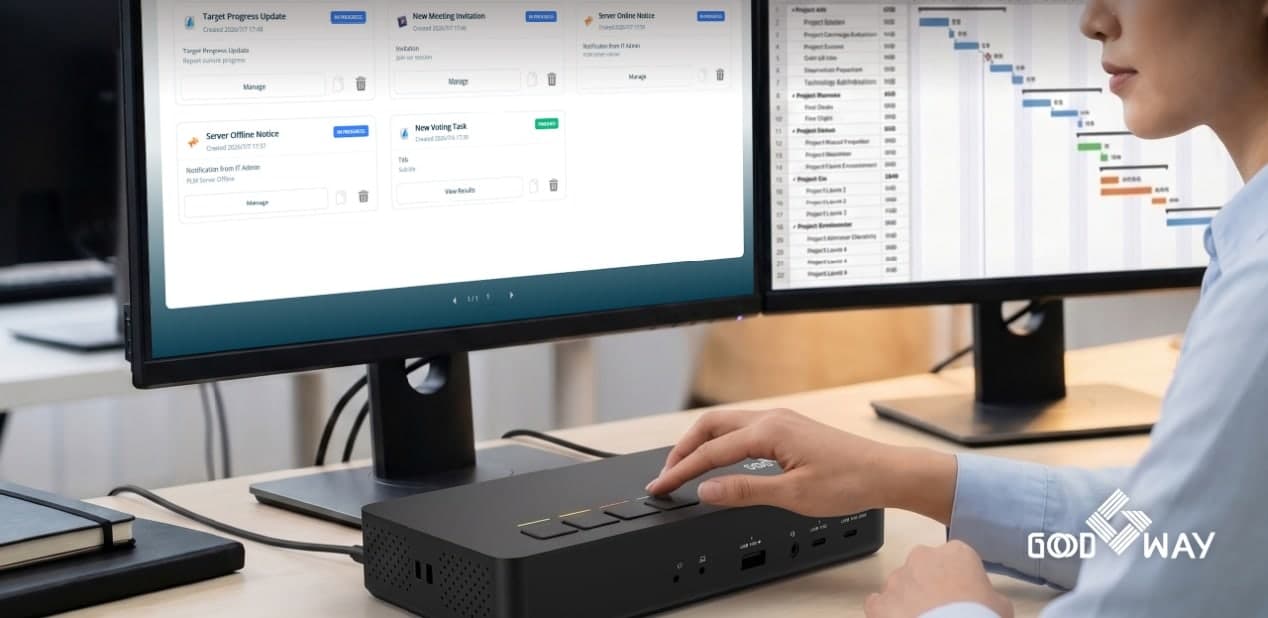
DockNavi is the management portal of the Smart Dock system, with a data-visualization dashboard. IT administrators manage docks remotely over the LAN or the cloud, push firmware updates, control power and see each dock's status and history, from the portal or the app.
Dashboard
See dock status, alerts and usage records at a glance.
Firmware updates over the LAN
Update firmware for groups of docks in batches; a failed update can be retried.
Remote power and schedules
Turn docks on or off remotely and schedule power-off outside working hours.
Port control
See I/O port status and enable or disable ports by policy (DUD8380 and DUD8390; the audio port shows status only).
Real-time notifications
Get alerted when a dock goes offline or reports a problem, and troubleshoot remotely.
New device detection
Docks not yet provisioned are detected; IT adds them from the portal or the app.
Deployment that fits your IT
App
Start small: manage the docks on your local network from the DockNavi app.
Public cloud
Manage docks across sites from the cloud portal.
Private cloud
Keep management and data inside your own network, with your own access rules.
Smart Dock hardware
Three Smart Docks for different hosts and displays. Each connects to DockNavi through its own Gigabit Ethernet port.
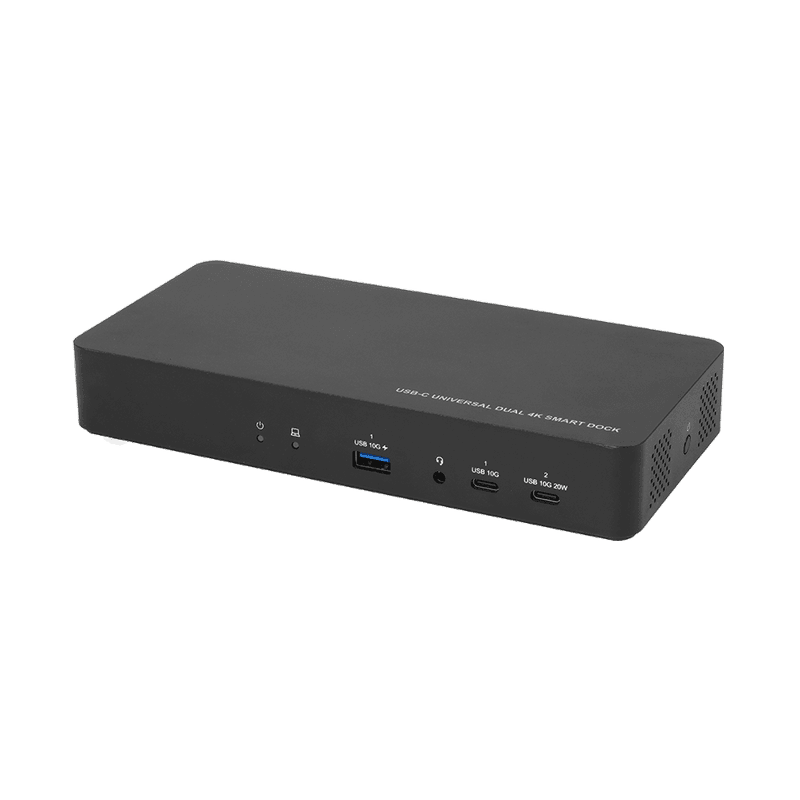
DUD8380
Universal Dual 4K Smart Dock
Universal USB-C dock with dual 4K60 via DisplayLink
- Dual 4K60 over HDMI or DisplayPort (two display groups)
- Laptop charging up to 96W over USB-C
- 2× USB-C 10Gbps (one with PD 20W), 3× USB-A 10Gbps, 2× USB-A 5Gbps
- Remote I/O port control, power schedules and firmware updates over the LAN
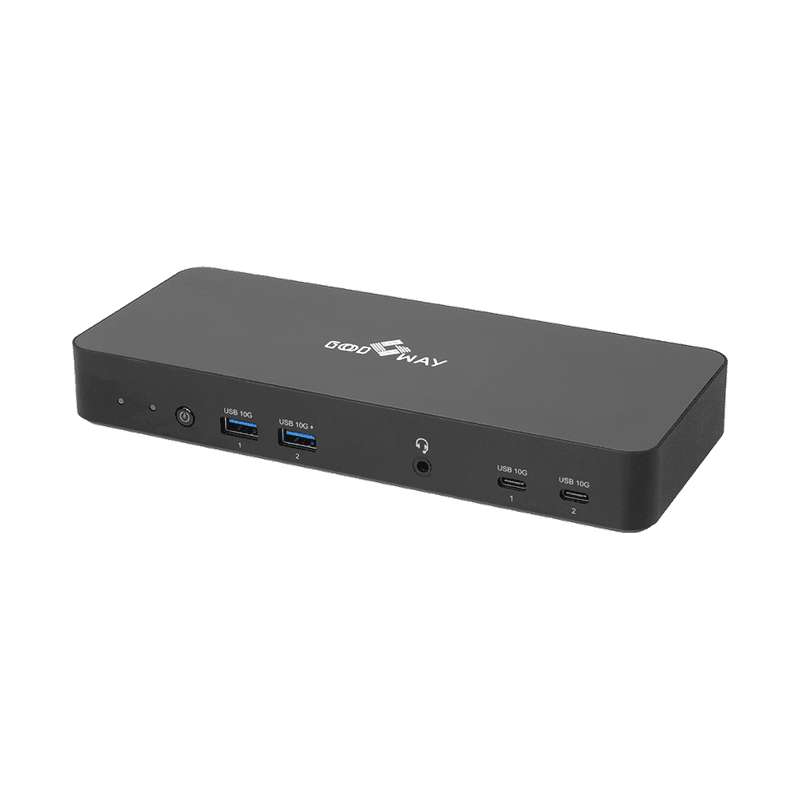
DUD8390
USB-C DP1.4 MST Smart Dock
USB-C DP 1.4 MST dock for up to three displays
- Dual 4K60 or triple 4K30 over 2× DisplayPort 1.4 and 1× HDMI 2.1 (host with DP 1.4 HBR3 + DSC)
- Laptop charging up to 96W over USB-C
- 2× USB-C 10Gbps, 2× USB-A 10Gbps, 2× USB-A 5Gbps
- Remote I/O port control, power schedules and firmware updates over the LAN
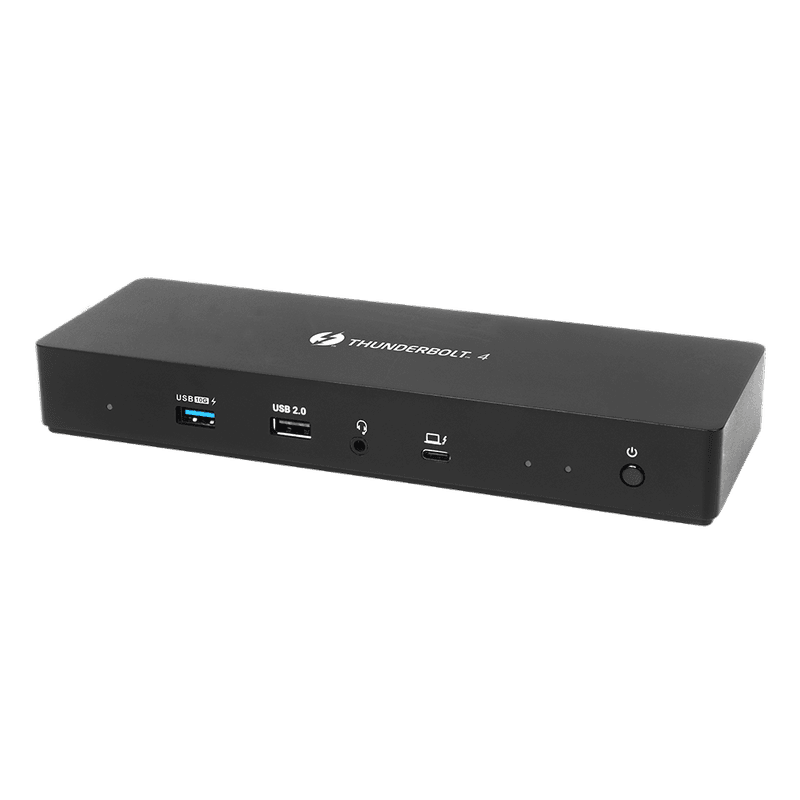
DBD8400
Thunderbolt™ 4 Smart Dock
Thunderbolt 4 smart dock with dual 4K60
- Thunderbolt 4 host connection with laptop charging up to 90W
- Dual 4K60 over 2× DisplayPort 1.4, or one display up to 4K120
- Thunderbolt 4 downstream, 1× USB-C 10Gbps, 3× USB-A 10Gbps, 1× USB-A 2.0
- Remote power control, power schedules and firmware updates over the LAN
FAQ
What is the difference between a Smart Dock and a regular docking station?
Which Smart Dock should I choose?
How is DockNavi deployed?
Does managing the dock interrupt the user's work?
Which operating systems do the Smart Docks support?
Keep people in control of sensitive actions with Live OSD prompts and physical key confirmation. Available features and deployment options depend on the dock model, enterprise policy and configuration.
Request a demo. Discuss your project.
Tell us how many docks and sites you manage; we will suggest a deployment and set up a demo.